Supported sources and formats
CercaPosta acquires email from connected mailboxes and imported archives. Connectors synchronise configured sources; imports process uploaded files. Both feed the same searchable archive. Access to sources requires valid authorisation, and limits also depend on storage allowance and installation configuration.
Email connectors
Scroll the table horizontally to read every column.
| Source | Connection | Note |
|---|---|---|
| Microsoft 365 | Microsoft Graph | Account authorisation and incremental synchronisation |
| On-premises Exchange Server | EWS | Server parameters or autodiscovery, depending on the environment |
| Gmail and Google Workspace | Gmail API | Read-only OAuth authorisation |
| IMAP mailboxes | IMAP | Per-folder acquisition and incremental synchronisation |
| POP3 mailboxes | POP3 | Message acquisition; check “Leave on server” |
For POP3, Leave on server is enabled by default. Disabling it requires confirmation and allows deletion from the mailbox after successful archiving. Keep it enabled if you want the source mailbox to remain unchanged.
Import formats
Scroll the table horizontally to read every column.
| Format | Acquired content | Limitation |
|---|---|---|
| PST | Email messages | Contacts and calendars are not imported as mail |
| EML | MIME-format messages | Damaged files may need review |
| mbox | Collections of messages | Processing depends on message readability |
| ZIP | Supported files inside the archive | Does not make every contained format supported |
For the procedure, see import an archive. Interface limits and available storage take precedence over estimates based only on file size.
Attachments, scans and indexing
CercaPosta extracts text from PDFs, Office documents and other processable formats. It can use OCR for images and scans. Searchable content depends on successful extraction: document encryption, corruption or poor scan quality may prevent or limit it.
Embedded images, such as signature logos, are not treated as ordinary attachments by the has:attachment filter. Consult the search operators.
Commercial availability
Storage, users, AI features and plan acquisition modes are shown in the published catalogue. This page does not set universal prices or allowances.
Example of a scan made searchable with OCR
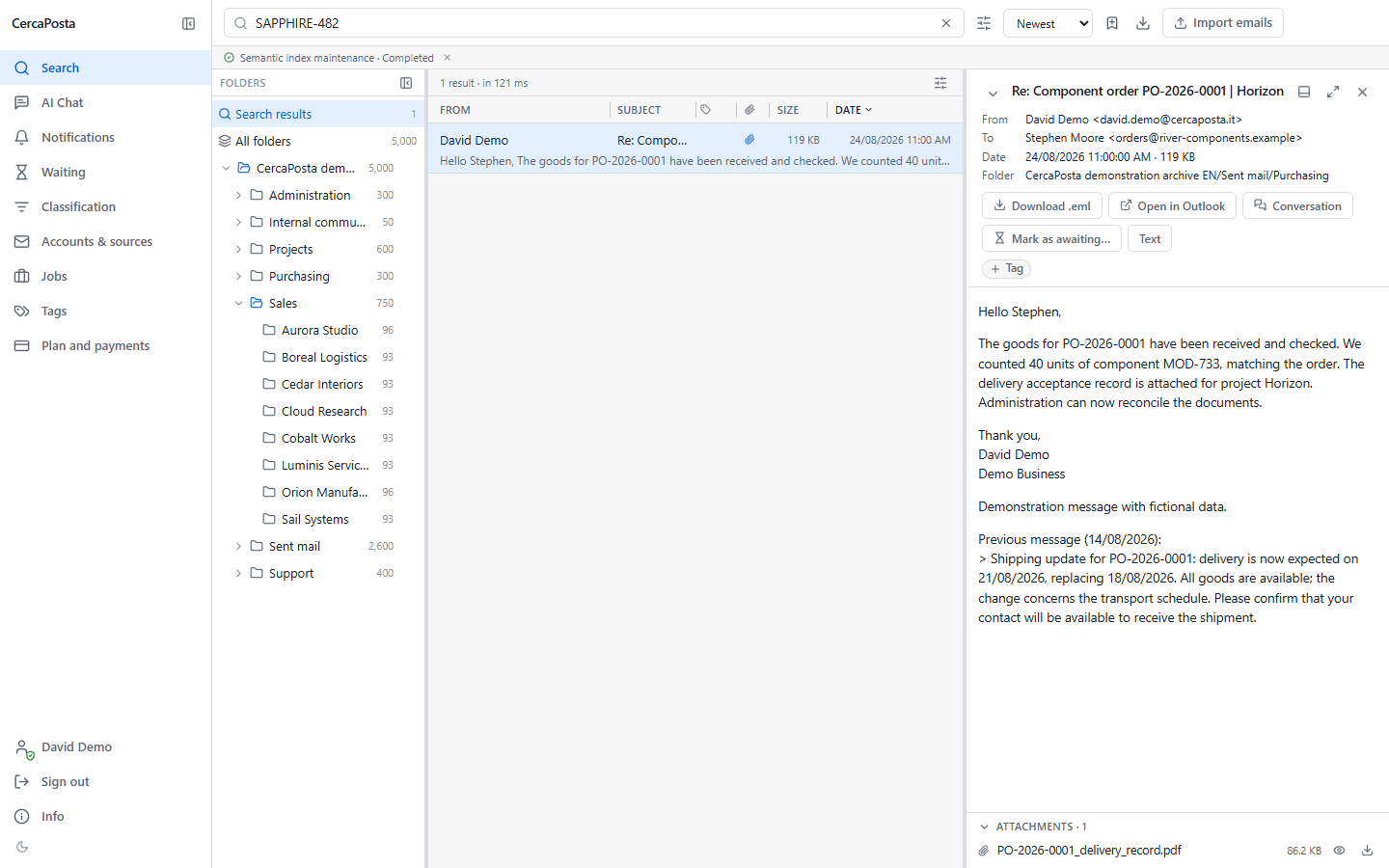
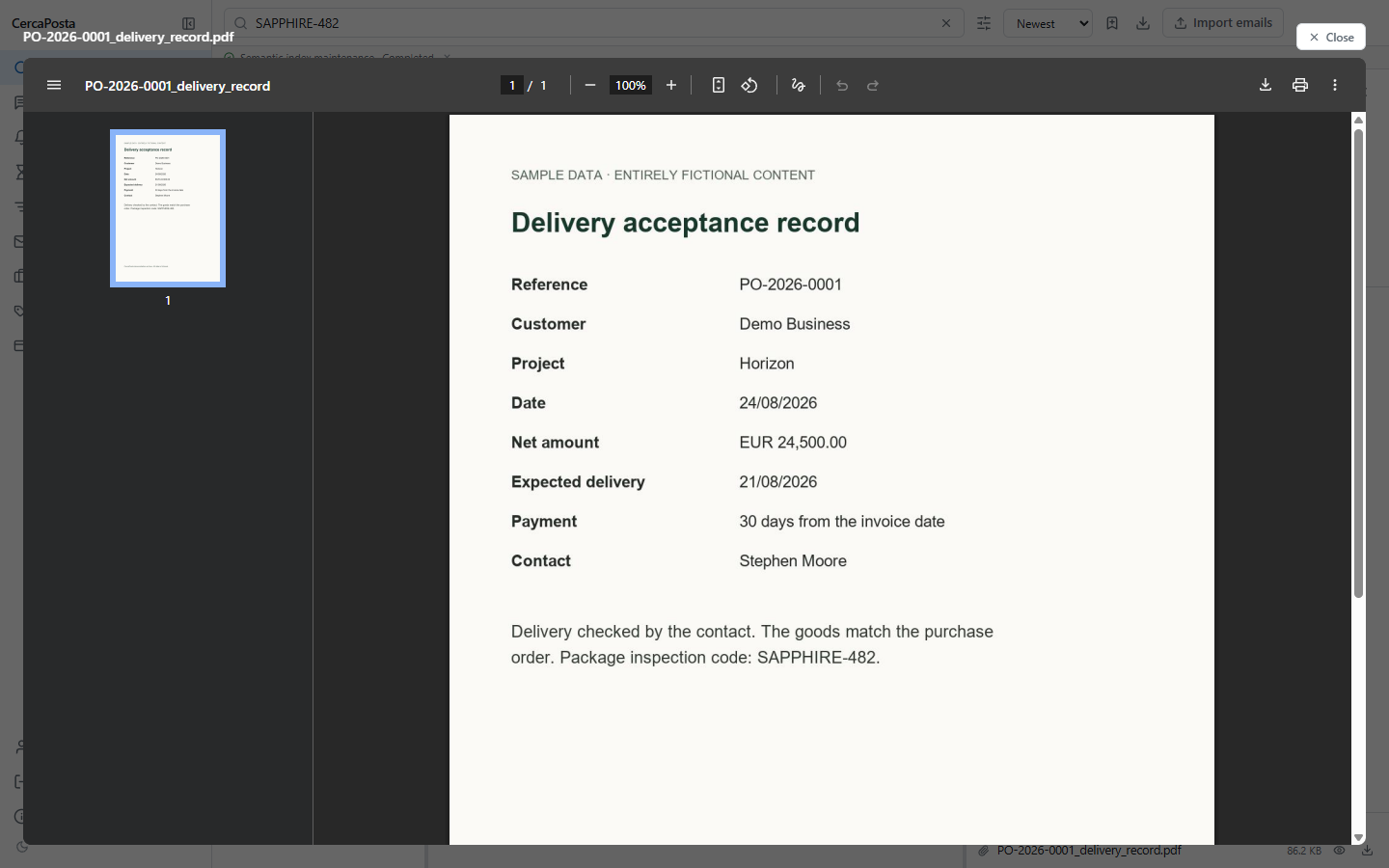
In the demo dataset, the code SAPPHIRE-482 appears only in the image of a delivery record. After OCR processing, searching for the code returns the message about PO-2026-0001. Opening PO-2026-0001_delivery_record.pdf reveals the same code on the scan.
The video shows the search, message selection and scan preview. Searchable text depends on document quality and successful processing.
Read the video transcript
You can also search for a code contained in the image of a scanned document.
Enter the code from the scan. Text recognition makes the matching message searchable.
Open the result and locate the attached delivery record.
The preview shows the same code on the original scanned page.
View screenshots of the steps
Example of a spreadsheet preview
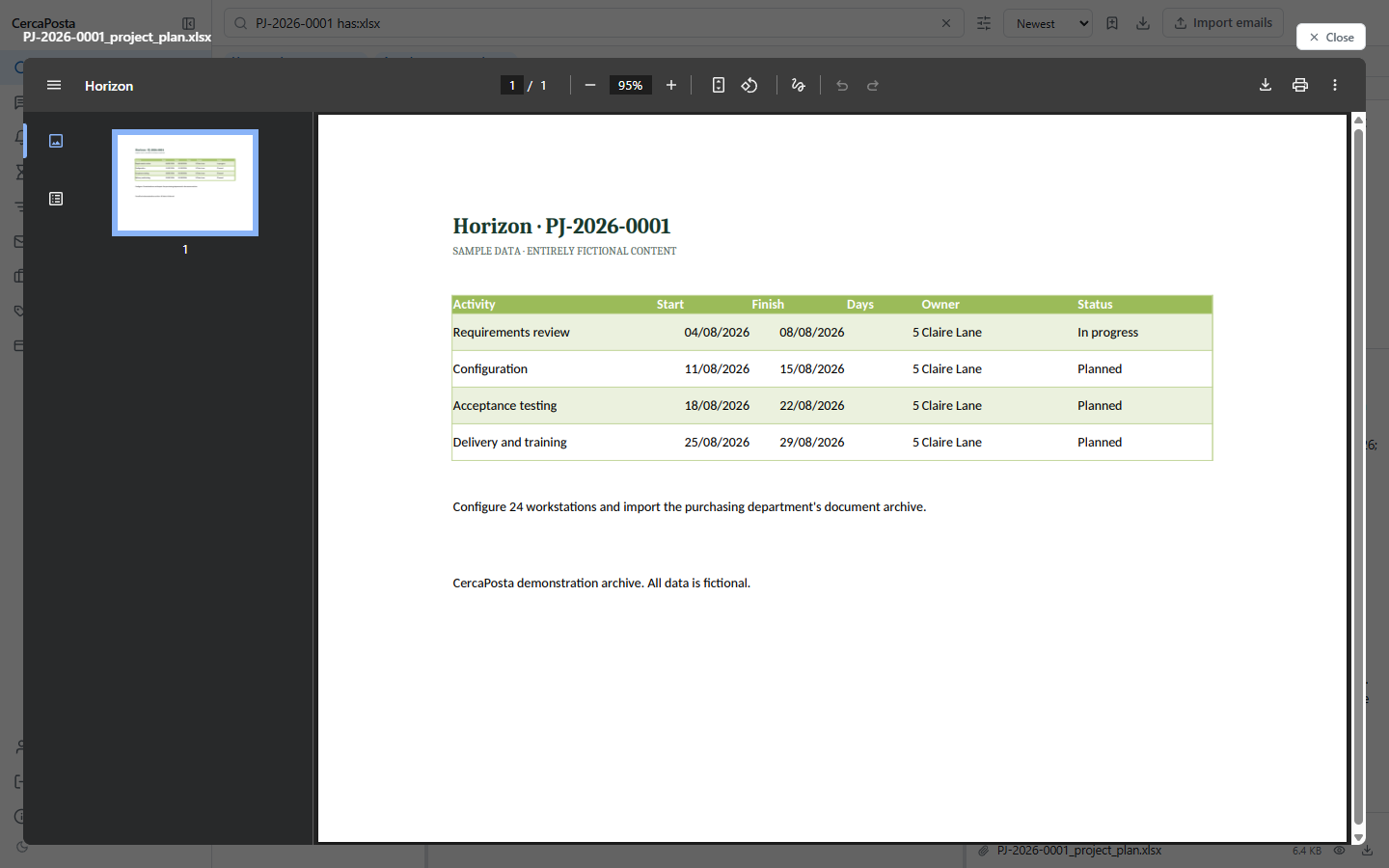
Searching for PJ-2026-0001 has:xlsx finds the message with PJ-2026-0001_project_plan.xlsx. Opening its preview displays the Horizon project table. In this installation the spreadsheet preview is rendered as a PDF document; the original file remains an Excel attachment.
Read the video transcript
Find the project plan among the attachments in the archive.
Combine the project reference with the filter for Excel files.
Open the message containing the project plan.
The preview displays the table as a PDF. The original file remains an Excel attachment.
View screenshots of the steps